
Tasks
A task is one unit of work: a prompt, an agent, a project, a lifecycle, a transcript and its output. Tasks are designed to survive restarts and to move between agents.
The task list
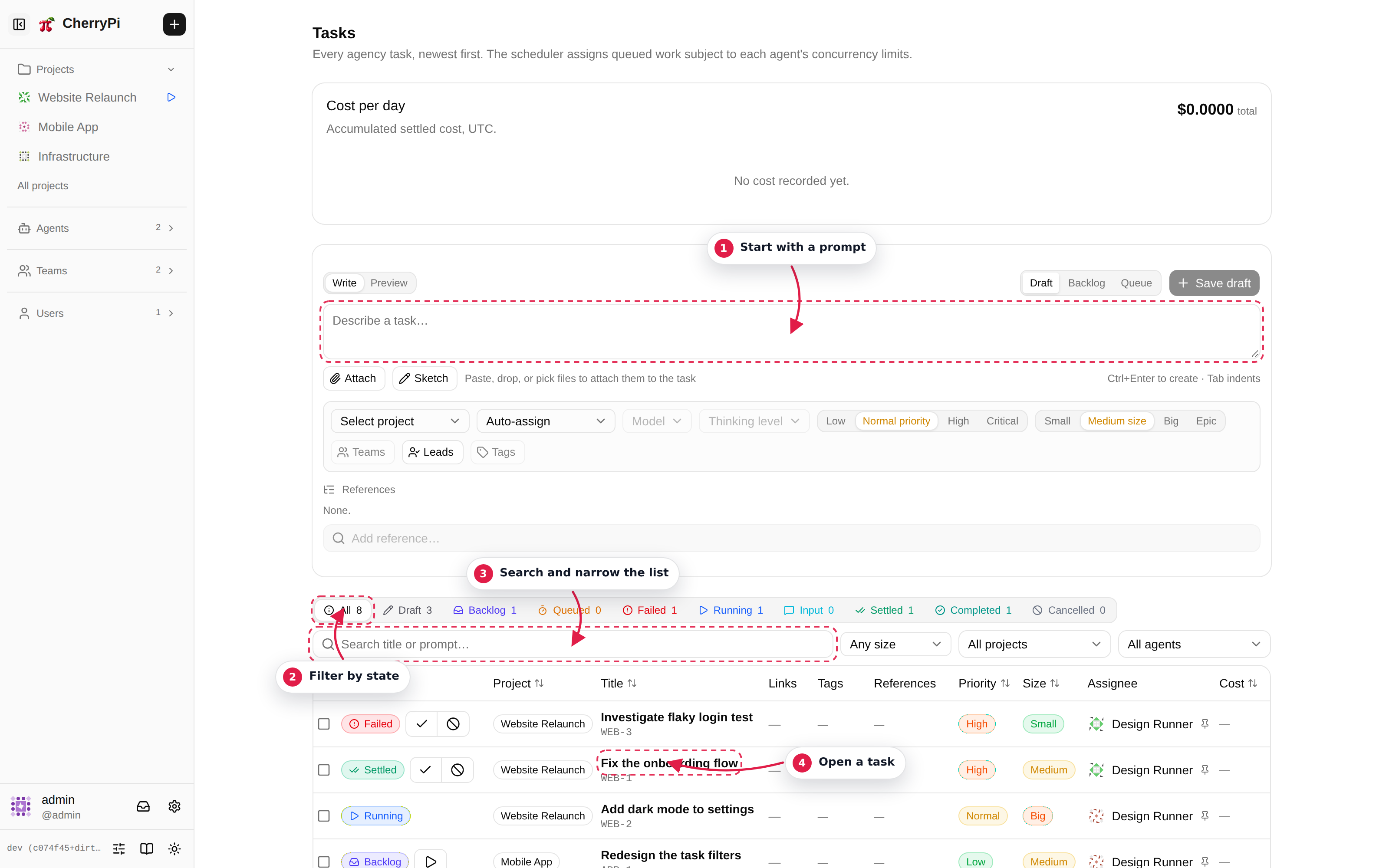
The list shows every task you can see. Use the filters to narrow by project, agent, state, tag or assignee. The status chip on each row is the task's lifecycle state, and the Progress column shows the plan the running agent published: a bar, the done/total count, and a one-line summary. Tasks without a plan show a dash. Click the column header to sort by completion.
Click the star to the left of the status to favorite a task. Favorites are private to your account, follow you across browsers, and always sort to the top of every task list (and the task page header offers the same star). Click it again to unfavorite the task.
Create a task with New task in the header or + next to the agency name. The composer asks for:
- Project — where the task belongs and who can see it.
- Agent — a specific agent, or Auto-assign to let the scheduler choose.
- Title and prompt — what should be done. Attach files with the paperclip or by drag and drop.
- Tags, priority and size — optional metadata used by filters and the scheduler.
Submit it with Put to Backlog (park it, still editable) or Queue (hand it to the scheduler now). A backlog task can still be edited; a queued task waits for an incomplete blocking reference, an eligible agent, or a free slot. The task page shows the exact reason (for example Waiting for tasks to become completed: PRFX-1, PRFX-2), and the task table repeats it in the state tooltip.
Task templates
A task template is a reusable prompt saved per project, written in Jinja. Instead of retyping the same instructions, pick a template, fill in its arguments, and create the task from it.
Manage templates in Project → Settings → Templates. Each template has:
- a prompt body and an optional title template, both rendered with Jinja (
,{% if %},{% for %}, and the standard filters); - arguments — a declared key, label, type (text, multiline, number, boolean or select), default value and required flag. Every variable the body or title references must be declared, so a typo blocks saving instead of rendering an empty value. Includes, macros and template inheritance are not supported;
- task defaults — priority, size, owning teams, leads and tags. Explicit fields picked in the composer override them.
Every save that changes the content appends an immutable version, and the editor's Preview tab renders the draft with the agency's own engine, so it matches the created task exactly. An older version can be restored as a new version.
To create a task from a template, open the composer and press Template next to the project picker, or use the same action from the task template dialog. Fill in the arguments, then either Use in composer (edit the rendered prompt before creating) or Create now (put it in backlog or queue it directly). The task records the template name, version and the argument values it was created from in a collapsed General tab entry, so later template edits never rewrite its history. Archiving a template hides it from the pickers but keeps those records.
Task states
| State | Meaning |
|---|---|
backlog | Created but not queued yet. The prompt, project, and model are still editable. |
queued | Waiting for blocking references, an eligible agent, or a free slot. |
running | Pi is working. |
input | Pi asked a question and waits for an answer. |
settled | The run finished; the task can be followed up. |
completed | Finished and explicitly completed by a person. |
failed | The run failed; the error is shown above the console. |
cancelled | Stopped and not expected to continue. |
The task detail page
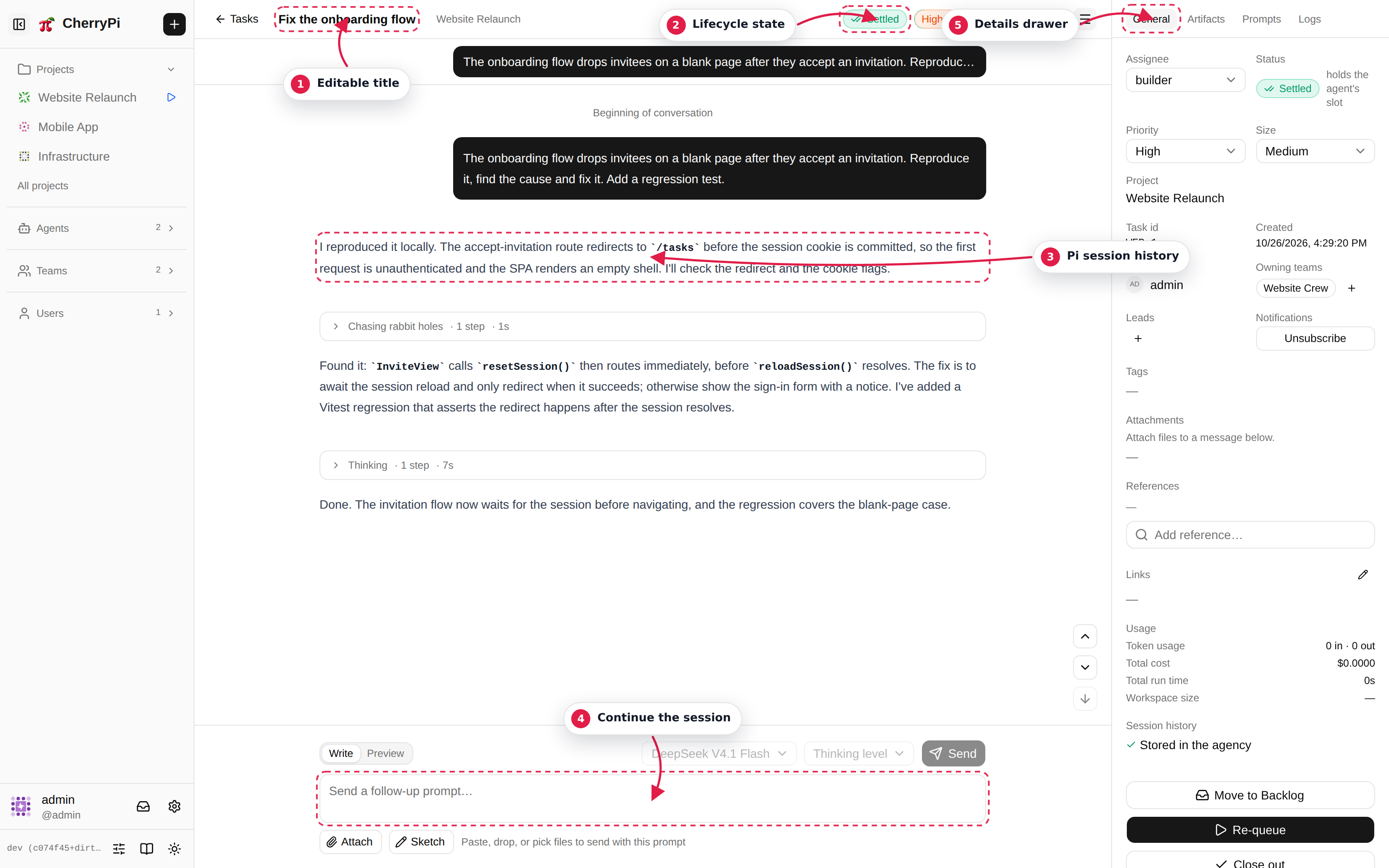
The page has three regions:
- Header — editable title, project, state, priority and size. The menu on the right opens the details drawer.
- Console — the live Pi transcript. Tool calls are collapsible, questions appear inline, and the follow-up composer stays at the bottom.
- Details drawer — assignee, tags, teams, leads, prompt versions, links and usage.
Progress and planning
Every task is asked to publish a short plan before it starts multi-step work and to keep it current: the agent calls reportTaskProgress with the complete checklist, and the dashboard derives the numeric progress from it. The plan is visible in the task table, as a compact strip above the composer, and in full in the drawer's Plan tab. Plans are expected to change: when new input or an external event such as a CI result invalidates a step, the agent replaces the list. Users cannot edit it. The plan belongs to the task, so it survives re-queues, restarts and archiving.
Prompting
Before the first run, the prompt editor edits the task's original prompt. After the task starts, the composer sends follow-up messages to the same Pi session. Use Write and Preview to check Markdown before sending.
Ctrl+Enter (Cmd+Enter on macOS) sends a message. Drag files into the console or use the paperclip to attach them. Files are uploaded to the agency and materialized into the agent's workspace before Pi sees them.
Sites
When a task publishes a static site, the console area gains Chat and Site tabs. The site opens beside the chat; use Full size or New tab to give it the whole window. See Sites.
References and mentions
The task composer, the prompt editor and the follow-up composer understand two shortcuts:
@searches users, agents, projects and teams. Pick one to insert a clickable actor, project or team reference.#opens the task picker inline, with the same reference scope and filters as the References panel. The editor stays focused and the list narrows as you type; pick one to insert a clickable task reference.
References are ordinary Markdown links with a ref: destination, so they survive edits and are visible to Pi in the prompt. The dashboard renders them as chips with the entity's avatar and current name (or its initials when there is no picture); task chips show the task id. Mentions are presentation only: they do not send a notification or change the task's recipients.
Answering questions
When Pi asks a question the task moves to input. The questionnaire appears in the console; answer every question and submit them together. Each answer can carry a note, and the footer's collapsed Final note (optional) section takes a comment about the questionnaire as a whole; it is sent to the agent with the answers. Questions, option descriptions and the final note are Markdown (tables and Mermaid diagrams included) — raw HTML is shown as text.
While the questionnaire is open you can already type, attach files to and preview a follow-up message in the composer, but sending stays disabled until you submit the answers. The draft is kept, so the same composer is ready afterwards. If the answer fails to send, the dialog keeps your input so you can retry without losing it.
Queued steering
While a run is active you can send steering messages. They are queued and injected between tool blocks instead of interrupting the current step. The console shows the queue above the composer, where you can clear it.
Stopping and resuming
- Cancel stops the run and moves the task to
cancelled. - Re-queue on a failed task continues it from where it stopped instead of replaying the original prompt.
- Move to Backlog on a failed task parks it without retrying it.
- Follow up on a settled or completed task sends a new message to the same session.
A task that is reassigned to another agent is reconstructed from the agency's session history. If the old agent's workspace was deleted, or the agent was restarted with fresh data (for example on another machine), the task shows Session cleaned up; a follow-up starts a fresh Pi session from the stored conversation. A run that was in flight when its agent disappeared is failed with an explanation, and re-queueing it recreates the session the same way.
Notifications and sounds
The inbox in the sidebar collects attention signals from your tasks: a run started, a task needs input, a run settled, failed, completed or was cancelled, and team invitations. User settings → Notifications chooses, per event, whether it is stored in the inbox, plays a sound, and pops a desktop notification. The inbox is agency-side; the desktop permission and the per-event sound/desktop switches are per browser.
The sound is synthesized live in the browser from a recipe; CherryPi ships no audio files. Pick one of the built-in sets:
| Set | Character |
|---|---|
| Classic | The original CherryPi chime, note for note. |
| Cherry | Warm, rounded chimes. The default. |
| Wood | Marimba and woodblock: a short knock with an organic body. |
| Glass | Bell and glass partials with a short room around them. |
| Arcade | Dry chiptune blips: square waves, fast and bright. |
The set is an organization setting: an administrator picks it once for the whole agency in Organization settings → General → Notification sounds, and every browser plays that set. The volume is a per-browser preference, so each person can turn it down without changing what everyone else hears.
Preview auditions the whole set in event order; the small play button next to each event's Play Sound switch auditions just that event, even while its switch is off, so you can hear exactly which sound belongs to which event. The volume slider takes effect immediately. Browsers only allow audio after a gesture, so the first click or keypress on the page unlocks it.
The details drawer
The drawer exposes the operational controls:
| Tab | Contents |
|---|---|
| General | Assignee, project, tags, priority, size, teams, leads, links, usage and attachments. |
| Plan | The plan the running agent published with reportTaskProgress: a checklist with pending, in_progress and done steps, the done/total count and the current summary. Read-only. |
| Artifacts | Files published as the task's output. |
| Prompts | The pinned prompt versions and the composed system prompt. |
| Logs | The task's change log. |
Only project owners and members may prompt. Viewers can read the transcript and artifacts.
Task ids
A task id includes the project prefix and a sequence number, for example CHPI-42. The underlying (project, sequence) pair is stable even if the project prefix is renamed.